Dark Mode Website Design: Is It Actually Worth Building for Your Audience?
Dark Mode Website Design: Is It Actually Worth Building for Your Audience? Dark mode is worth building when your visitors...
Read More → Most hacked WordPress sites weren’t targeted by anyone. A bot found an outdated plugin, a reused password or an exposed login page, and walked in. This WordPress security checklist covers the fixes that close those doors: keep plugins patched, lock down logins, put a firewall in front of the site, keep tested off-site backups, and watch for changes. Do these five things well and you’ve dealt with the large majority of real-world risk.
What follows is ordered by how much risk each item removes, not by how technical it sounds.
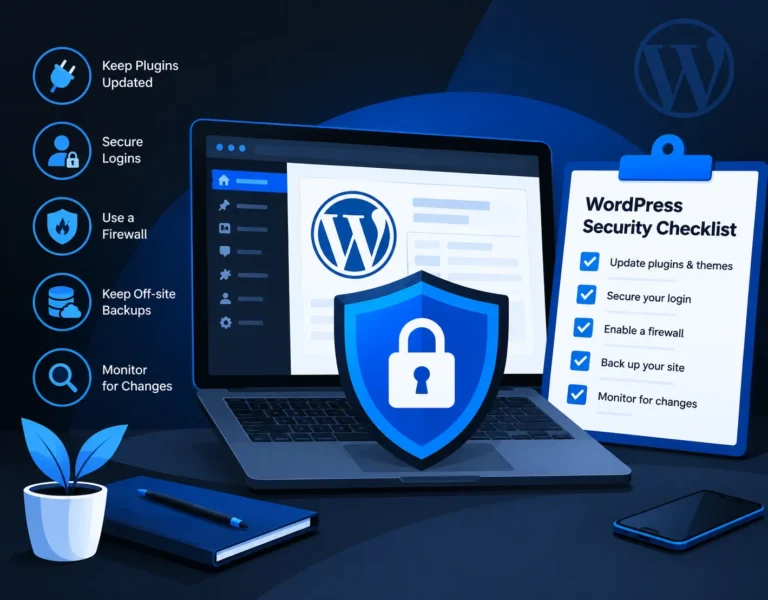
WordPress core is maintained by a large security team and is rarely the weak point. The usual entry points are:
A bot doesn’t care whether you run a five-page brochure site or a store with daily orders. It scans for known weaknesses at scale. So “we’re too small to be a target” is not a defence.
Most WordPress compromises trace back to a plugin or theme. Managing them properly is the single highest-value habit on this list.
Audit what’s installed. Deactivated plugins still sit on the server and can still be exploited if they contain a flaw. Delete anything you don’t use, including the default themes you aren’t running.
Check each plugin before you install it. Look at when it was last updated, whether the developer responds to support threads, and its active installs. A plugin untouched for two years is a liability, however popular it once was.
Update on a schedule, not “when I remember”. Security patches for plugins are often released with public details, which means attackers start scanning for unpatched sites within days. For small updates, enabling auto-updates for trusted plugins is reasonable. For major version jumps on a store or a site with custom code, test on a staging copy first. A broken checkout is also a business problem.
Use a vulnerability feed. Tools like Wordfence, Patchstack and WPScan publish known vulnerabilities by plugin and version. Subscribe to one so you hear about a flaw in a plugin you actually use, rather than finding out from the attacker.
Never use nulled themes or plugins. The saving is not worth it. This is one of the most common ways malware gets onto a business site.
The WordPress login page is the most-attacked URL on most sites, usually through automated password guessing.
Changing the login URL (for example away from /wp-admin) can cut down log noise, but treat it as a minor extra. It’s obscurity, not protection. 2FA and rate limiting do the real work.
A web application firewall (WAF) filters malicious requests such as SQL injection attempts, known exploit patterns and abusive bots before they hit your site. There are two main types:
Type | How it works | Good to know |
DNS/cloud-level WAF (e.g. Cloudflare, Sucuri) | Traffic is filtered before it reaches your server | Stops attacks early and reduces server load |
Plugin-level WAF (e.g. Wordfence) | Runs inside WordPress itself | Easier to set up, but malicious requests still reach your server |
For a business site, a cloud-level WAF is generally the stronger option, since blocked traffic never touches your hosting. Pair it with rate limiting on the login page and you’ve covered a lot of ground. Whichever you pick, configure it properly. A firewall installed on default settings and never reviewed gives less protection than people assume.
Your host is part of your security. When comparing options, check whether they offer:
Very cheap shared plans are where you most often see cross-site contamination. If the site earns money or collects leads, hosting is not the place to cut costs.
These are the settings that make a compromise harder to exploit and easier to contain.
Not every item matters equally. If you only do three from this list, do HTTPS, the file editor lock and the uploads-folder restriction.
Security is about reducing risk. Backups are what save you when something still goes wrong. A backup plan that works has four traits:
Back up both the database (your content, orders and users) and the files (themes, plugins, uploads). For busy ecommerce sites, the database may need much more frequent backups than a brochure site.
You can’t respond to what you don’t see. Set up:
Security also has a visibility side. A hacked site can be flagged by browsers and search engines, and injected spam pages can damage the rankings you’ve built. If you’re working on being cited in AI-generated answers as well, see our guide on AI Overviews & WordPress SEO, where site trust and clean technical health come up again.
How often | What to do |
Daily (automated) | Backups, malware scans, uptime checks |
Weekly | Review plugin and theme updates, check security alerts |
Monthly | Review user accounts and roles, check logs for odd activity |
Quarterly | Test a backup restore, audit installed plugins, review firewall rules, confirm PHP version |
Stay calm and work in order:
If the site handles customer data or payments, get professional help rather than going it alone.
Yes, when it’s maintained properly. WordPress core is regularly patched and powers a huge share of the web. Most breaches come from outdated plugins, weak passwords and poor hosting, not from the platform itself.
Vulnerable or abandoned plugins and themes are the most common entry point, followed by weak or reused passwords and compromised hosting accounts.
It helps, but a plugin isn’t a complete solution. A security plugin adds scanning, login protection and firewall rules, yet it works best alongside timely updates, strong credentials, good hosting and off-site backups.
Check weekly. Apply security updates as soon as you reasonably can, and test major updates on a staging site first if your site is a store or has custom functionality.
For administrator and editor accounts, yes. It blocks most password-guessing and stolen-credential attacks even when a password has leaked.
A plugin firewall runs inside WordPress, so bad requests still reach your server. A cloud firewall filters traffic before it arrives, which usually blocks attacks earlier and reduces server load.
Keep several restore points, for example daily copies for a couple of weeks plus a few older ones, stored away from your hosting server. Test restoring from them occasionally.
It can. Hacked sites may be flagged with warnings, have spam pages injected or be removed from results. Cleaning the site and requesting a review in Search Console helps recovery.
It can be, if the host provides proper account isolation, current PHP versions and server-level protection. Very cheap shared plans with weak isolation carry more risk, especially for business sites.
Warning signs include unknown admin users, sudden redirects, strange pages or links appearing, a browser security warning, a sudden traffic or ranking drop, or your host suspending the account. A malware scan and a review of your user list are the quickest first checks.
If you’re not sure whether your site would pass this checklist, I’m happy to take a look. I’m Sanjeev Kumar Malik, and I work on WordPress and website development for businesses. Have a look at my website development services to see how I work, or call/WhatsApp me on 9718604362 and we can go through your site’s security setup together.