Dark Mode Website Design: Is It Actually Worth Building for Your Audience?
Dark Mode Website Design: Is It Actually Worth Building for Your Audience? Dark mode is worth building when your visitors...
Read More → Most business owners only think about WordPress maintenance the day their site goes down, gets hacked, or starts loading so slowly that customers leave before the homepage even finishes rendering. By then, the damage — lost leads, lost rankings, sometimes lost data — has already happened. A consistent maintenance routine is what separates a WordPress site that quietly keeps working for years from one that turns into an emergency call to a developer.
This checklist covers what actually needs to happen on a WordPress site, how often, and why each item matters more than it looks like it does.
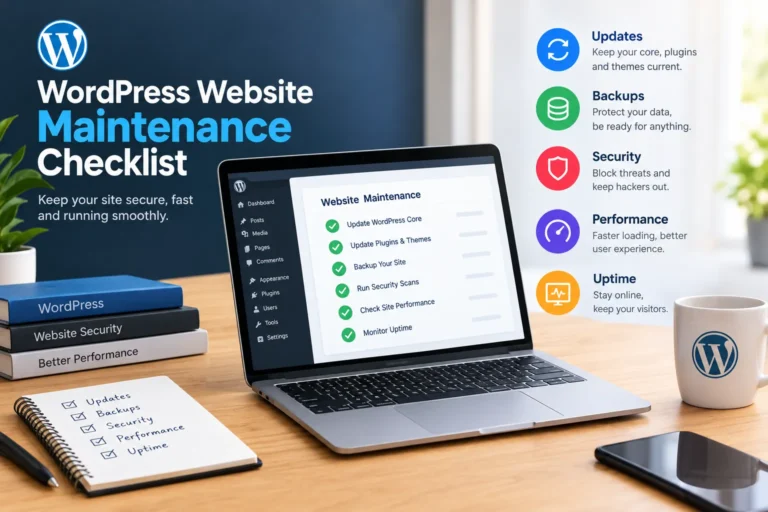
WordPresspowers a huge share of the web, which is exactly why it’s such a common target. Every plugin, every theme, and WordPress core itself gets updated regularly — partly for new features, but mostly to patch security holes that bad actors are actively scanning for. A site that hasn’t been touched in eight months isn’t “stable,” it’s just running old code with known vulnerabilities nobody has closed yet.
Add to that the natural bloat that builds up over time — unused plugins, orphaned files, an ever-growing database — and a site that once loaded in two seconds can quietly slow down to five or six without anyone noticing until traffic starts dropping.
Outdated plugins are the single most common way WordPress sites get compromised. A vulnerability gets disclosed publicly (sometimes as part of the update notes themselves), and within days automated bots are scanning the web looking for sites still running the old version.
What a proper update routine looks like:
Every other item on this checklist assumes you can undo a mistake. Backups are what make that true. Without a recent backup, a bad update, a hack, or even a client accidentally deleting a page becomes a permanent loss instead of a five-minute fix.
A backup routine worth trusting includes:
Updates close known vulnerabilities, but scans catch what’s already gotten through or what’s being attempted right now. Regular malware scanning flags suspicious file changes, injected code, or unauthorized admin accounts before they turn into a full site takeover.
Beyond scans, a few hardening basics go a long way:
A site that’s down loses every visitor who tries to reach it in that window — and if it happens often enough, search engines notice too. Uptime monitoring tools check the site every few minutes and alert you the moment it goes offline, so the fix starts in minutes instead of whenever someone happens to notice.
Performance matters just as much as uptime:
Business owners often ask for a straight frequency guide, so here’s a realistic one:
A few patterns come up again and again on sites that “should” have been maintained but weren’t really:
Plugin and theme updates should be checked weekly at minimum, with security-critical patches applied as soon as they’re tested. Core WordPress updates shouldn’t lag more than a few weeks behind release unless there’s a specific compatibility reason to wait.
It depends on the plugin. For low-risk, well-maintained plugins, automatic minor updates are usually fine. For anything tied to payments, forms, or core site functionality, a staging test before updating is safer than letting it update unattended.
Daily backups are the baseline for any site that changes regularly — new posts, products, orders, or form submissions. Sites that rarely change can sometimes stretch to weekly, but daily is the safer default.
Good maintenance reduces the odds significantly but doesn’t make a site immune. If it happens, a recent clean backup is what makes recovery fast instead of catastrophic — which is exactly why backup routines matter even when everything else is being done right.
Basic tasks like update checks and backup verification are manageable for a business owner with some technical comfort. Security hardening, performance troubleshooting, and recovering from an actual hack usually go faster and safer with a developer who’s done it before.
They cover the basics — scanning and login protection, mostly — but rarely include off-site backups, uptime monitoring, or hands-on incident response. Most sites end up combining a few tools rather than relying on one free plugin for everything.
Run it through a speed testing tool and compare load time against the 2-3 second range most visitors tolerate before bouncing. If your homepage or product pages are consistently above that, it’s worth a proper audit rather than guessing at the cause.
Updating is one task inside maintenance. A full maintenance routine also includes backups, security scans, performance checks, and uptime monitoring — updating alone doesn’t catch a slow database or a broken backup.
Yes — a WooCommerce store handles transactions and customer data, so backup frequency, security hardening, and staging tests before updates matter even more, since downtime or a bad update directly costs sales.
For business owners who don’t have the time to check updates weekly, verify backups, and respond quickly if something breaks, a maintenance plan is usually cheaper than the cost of downtime or a hack recovery down the line.