Dark Mode Website Design: Is It Actually Worth Building for Your Audience?
Dark Mode Website Design: Is It Actually Worth Building for Your Audience? Dark mode is worth building when your visitors...
Read More → WordPress speed optimization is one of the first things to look at when your website takes too long to load. A slow WordPress site is usually caused by four things stacking on top of each other: poor caching, oversized images, weak hosting, and too many plugins. Fixing these areas in the right order can make a noticeable difference to loading speed without rebuilding the entire website. Here’s how to speed up a slow WordPress website step by step.
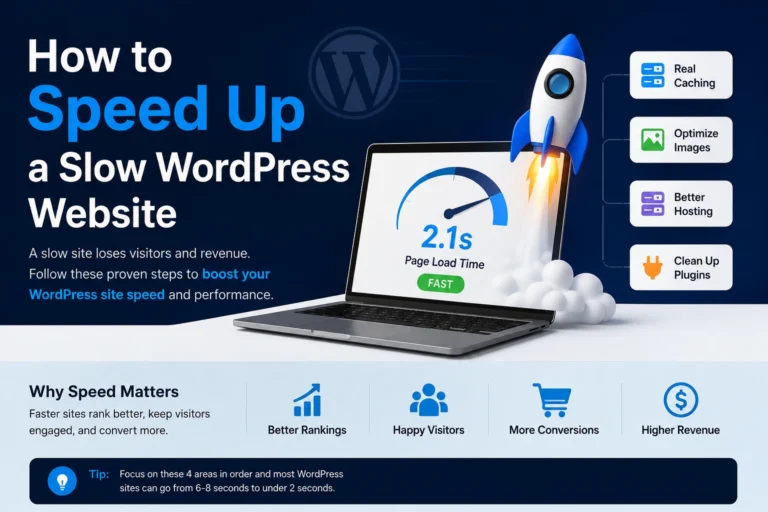
Before you start installing plugins, it helps to know what’s actually happening when a WordPress page loads slowly. Every time someone visits your site, WordPress has to run PHP scripts, query the database for your content, assemble the page from your theme and plugins, then send it to the browser. On a default setup, this happens fresh for every single visitor — nothing is saved or reused.
Add in unoptimized images, a shared hosting plan serving hundreds of other sites off the same server, and a dozen plugins each running their own scripts on every page load, and you end up with a site that takes 5-10 seconds to load a homepage. Google’s own research shows bounce rates climb sharply as load time crosses the 3-second mark, so this isn’t just a technical annoyance — it’s lost visitors and lost revenue.
The good news: none of the fixes below require rebuilding your site. They’re changes you make to how your existing site runs.
Caching is the single highest-impact fix for WordPress speed optimization, because it stops your server from rebuilding the same page from scratch every time someone visits it.
What caching actually does: the first time a page loads, a caching plugin saves a static HTML copy of it. Every visitor after that gets served the saved copy directly, skipping the PHP processing and database queries entirely. This alone can cut load times by 50% or more on a typical WordPress site.
A few caching layers worth setting up:
One thing to watch: caching plugins need to be configured to exclude cart and checkout pages on ecommerce sites, or you’ll end up serving stale pricing or cart data to customers.
Images are almost always the single largest contributor to page weight on a WordPress site. A blog post with five uncompressed photos straight from a phone camera can easily add 15-20MB to a page that should weigh under 2MB total.
Three separate things need to happen here:
For sites with a large media library already, running a bulk optimization pass through one of these plugins once, then keeping “optimize on upload” turned on, handles this permanently going forward.
This is the fix people skip most often, because it feels like the least “technical” one — but it’s frequently the actual bottleneck. If your site is on cheap shared hosting, you’re sharing CPU and memory resources with potentially hundreds of other websites on the same physical server. No amount of caching or image compression fully compensates for a server that’s overloaded.
Signs your hosting is the real problem:
Moving to managed WordPress hosting (built specifically to run WordPress efficiently, often with server-level caching already included) or at minimum a better-resourced VPS typically fixes this at the root instead of working around it. This is also where a professional website developer earns their keep — diagnosing whether an issue is code-level or infrastructure-level isn’t always obvious from the front end, and picking the wrong hosting tier wastes both money and time.
Every active plugin adds its own scripts, styles, and often database queries to every page load — whether or not that plugin’s functionality is actually used on that page. A site running 40+ plugins, many installed once and forgotten, carries that weight on every single visit.
A practical plugin audit looks like this:
A good target for most business sites is under 20 active plugins, though this varies with how complex the site’s functionality actually needs to be.
If you’re tackling this yourself, this order gets you the fastest visible improvement:
This is also where a full website redesign and speed optimization pass makes sense for sites where the underlying theme or page-builder setup itself is bloated — no amount of plugin cleanup fixes a theme that was poorly coded to begin with.
Caching, image compression, and plugin cleanup alone typically take a moderately slow site (5-7 second load time) down to 2-3 seconds. Getting under 2 seconds consistently usually needs hosting-level changes or theme-level fixes, which is where developer help becomes worth it.
Some managed hosts include server-level caching, in which case an additional plugin can actually cause conflicts. Check with your host first — if they confirm server-side caching is active, skip the plugin layer or use a lightweight one built for their specific platform.
Not at the compression levels tools like ShortPixel or Imagify use by default. Lossy compression at standard settings is generally not visible to the naked eye; you can always compare before/after on a few images before running a full bulk optimization.
Not always — a well-optimized site with caching and compressed images can run acceptably on decent shared hosting. But if you’ve already fixed caching, images, and plugins and the site is still slow, hosting is the next place to look.
There’s no hard number — a site with 35 lightweight, well-coded plugins can outperform one with 15 bloated ones. The real question is whether each plugin is actively used and well-maintained, not the raw count.
Yes. Page speed is a confirmed ranking factor, and it also affects Core Web Vitals scores, which Google uses as part of its ranking signals. Beyond rankings, slower sites also see higher bounce rates directly.
Not necessarily first — try caching, image, and plugin fixes before assuming the builder is the problem. Some page builders are heavier than others, but a poorly optimized setup on a lightweight builder can still be slow.
After any major change (new plugin, theme update, big content addition), it’s worth a quick re-test. Otherwise, a monthly check catches slow creep before it becomes a real problem.
It can cause visitors to see outdated content if the cache isn’t cleared after updates, or show wrong data on dynamic pages like a shopping cart if those pages aren’t excluded from caching. Most modern caching plugins handle this automatically, but it’s worth checking the exclusion settings.
Installing and configuring a caching plugin properly, since it’s a one-time setup that benefits every single page on the site immediately, with no ongoing effort required afterward.
something a quick technical audit spots in minutes — a bloated theme, a hosting mismatch, or conflicting plugins that aren’t obvious from the front end. Sanjeev Kumar Malik’s website development services cover exactly this kind of speed diagnosis and fix, alongside full website redesign and speed optimization work where the underlying setup needs more than a cleanup. Call 9718604362 to get your site looked at.